
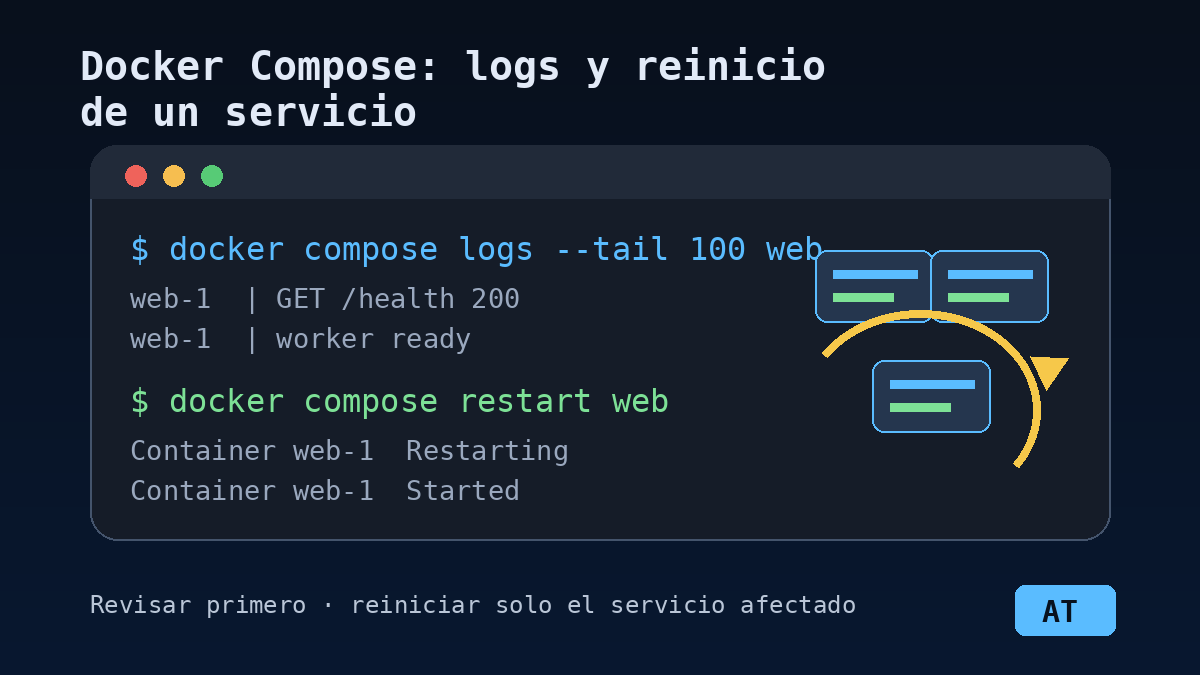
When a container fails or gets stuck, it is better to check its logs first and restart only the affected service, not the whole application.
View the latest logs
From the directory where the compose.yml file is located, list the services if you do not remember the exact name:
docker compose ps
Then query only the service you are interested in. For example, to view the last 100 lines of web:
docker compose logs --tail 100 web
If you want to follow the output live:
docker compose logs -f web
And if the problem has just happened, you can limit the search by time:
docker compose logs --since 10m web
Restart only that service
If the service needs to be restarted, do it in a limited way:
docker compose restart web
This avoids stopping other services in the same project, such as a database or a proxy, unless that is really necessary.
Then check that it is up again:
docker compose ps web
docker compose logs --tail 50 web
Note about variables in `compose.yml`
If you write shell commands inside compose.yml and need the container to receive a $ symbol, escape it as $$. For example:
services:
  logger:
    image: busybox
    command: sh -c 'echo "HOSTNAME $$HOSTNAME"'
Docker Compose interprets variables before starting the container. Escaping the dollar sign prevents unexpected substitutions.
Quick summary
# view services
docker compose ps

# latest logs from a service
docker compose logs --tail 100 web

# recent logs
docker compose logs --since 10m web

# restart only that service
docker compose restart web

# verify
docker compose ps web