
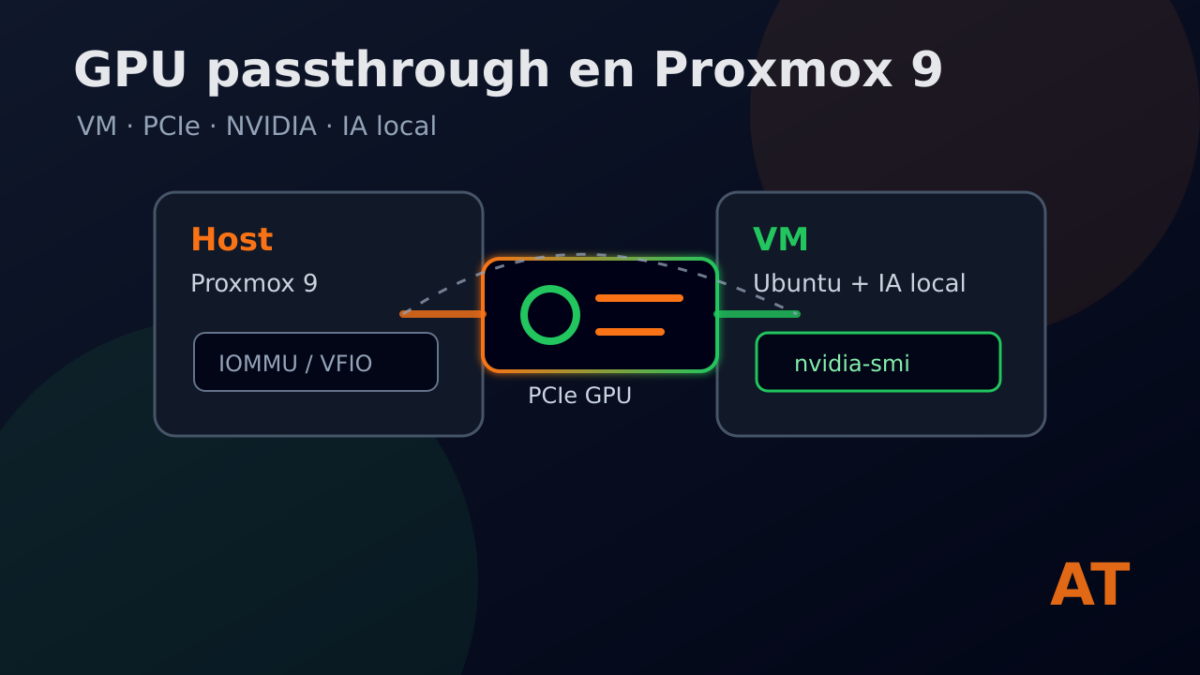
To use an NVIDIA GPU inside a VM, Proxmox must be able to pass the whole card through to the guest by using PCI passthrough.
The idea is to prepare a VM that sees the GPU as if it were its own hardware. Later, inside Ubuntu, we will install the NVIDIA driver and check the card with nvidia-smi.
This entry does not install Ubuntu or the NVIDIA drivers inside the VM yet. That part is linked in the next piece: prepare Ubuntu with NVIDIA for local AI.
Before starting
You need:
- a CPU and motherboard with IOMMU;
- IOMMU, VT-d or AMD-Vi enabled in BIOS/UEFI;
- a dedicated NVIDIA GPU for the VM;
- a powered-off VM in Proxmox 9;
- a maintenance window if you are going to change host parameters.
If the GPU is the host’s only graphical output, proceed more carefully. When you pass it to the VM, the host stops using it.
Verify IOMMU in Proxmox
On the Proxmox node, check whether the kernel detects IOMMU:
dmesg | grep -e DMAR -e IOMMU -e AMD-Vi
In Proxmox 9, with current kernels, IOMMU is usually active if BIOS/UEFI is configured correctly. On older machines it may be necessary to add kernel parameters, especially on Intel.
If nothing related to IOMMU appears, check BIOS/UEFI first before touching the VM.
Locate the GPU and its IOMMU group
List the PCI devices seen by Proxmox:
pvesh get /nodes/$(hostname)/hardware/pci --pci-class-blacklist ""
Look for the NVIDIA GPU and, if present, its HDMI audio function as well. Many cards appear as two devices in the same IOMMU group.
What matters here:
- the PCI identifier, for example
01:00.0; - whether there is an audio function, for example
01:00.1; - the IOMMU group;
- that there are no other important devices mixed into the same group.
If the GPU shares an IOMMU group with other devices that you do not want to pass to the VM, you may need to move it to another slot or review the board’s ACS/IOMMU options.
Configure the VM with q35
For PCIe passthrough, use the q35 machine type.
You can check or adjust the VM from the Proxmox interface, in the machine hardware options. If you prefer the CLI:
qm set VMID --machine q35
Replace VMID with the real VM ID.
Add the GPU to the VM
From the web interface:
- VM → Hardware.
- Add → PCI Device.
- Select the NVIDIA GPU.
- Enable PCI-Express if appropriate.
- If the card has associated HDMI audio, add it as well or select all functions if Proxmox offers that option.
With the CLI, the base example would be:
qm set VMID --hostpci0 01:00,pcie=1
Replace 01:00 with the real device for your GPU.
Start the VM and install Ubuntu
Start the VM and install Ubuntu 22.04, 24.04 or 26.04.
Inside Ubuntu, the next step is to install the NVIDIA driver and check the GPU with nvidia-smi:
nvidia-smi
The linked piece for that part is:
Prepare Ubuntu 22.04, 24.04 and 26.04 with NVIDIA for local AI
If Proxmox is still using the GPU
If the Proxmox host loads a driver for that GPU, the VM may not be able to use it correctly. In that case, the usual solution is to reserve the card for VFIO or block the host driver.
I would not do that as the first step if it is not needed. First I would try normal passthrough and look at the error.
If you need to free the GPU from the host, the Proxmox documentation covers module blacklisting, for example nouveau or nvidia, and vfio-pci configuration by vendor/device ID. That part should be treated as troubleshooting, not as a mandatory recipe.
Final check
The good test is not in Proxmox, but inside the VM:
nvidia-smi
If the VM shows the GPU, passthrough works. From there you can continue with Ollama or another local AI tool.