
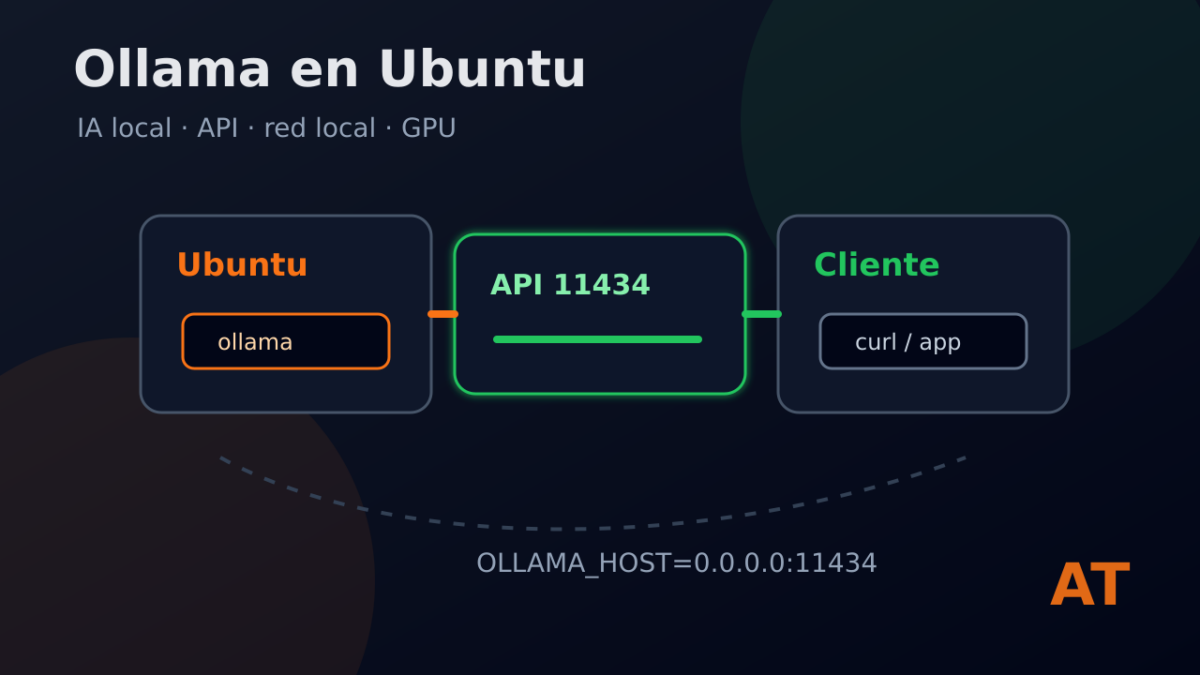
Ollama lets you run local AI models on the machine itself or expose its API so other computers on the network can use it.
In this entry we install Ollama on Ubuntu, check that the service responds and leave the optional configuration ready to accept external connections.
The NVIDIA GPU part is covered in the previous piece: prepare Ubuntu with NVIDIA for local AI.
Install Ollama
The official Linux installation uses Ollama’s script:
curl -fsSL https://ollama.com/install.sh | sh
After installing it, check the service:
systemctl status ollama
And check that the local API responds:
curl http://localhost:11434/api/version
If it returns a version, Ollama is running.
Test a small model
For a first test, it is better to use a small model. For example:
ollama run llama3.2:1b
You can also test by downloading the model without entering interactive mode:
ollama pull llama3.2:1b
And list the installed models:
ollama list
To see which models are currently loaded, use ollama ps:
ollama ps
This command is useful when you want to know whether a model is still in memory, how much it uses and whether it is running on CPU, GPU or in a mixed way.
Allow connections from other machines
By default, Ollama listens only on 127.0.0.1:11434. That is fine for local use.
If you want to use it from another machine on your network, configure OLLAMA_HOST in the systemd service.
Create a service override:
sudo systemctl edit ollama.service
Add this block:
[Service]
Environment=”OLLAMA_HOST=0.0.0.0:11434″
Save the file, reload systemd and restart Ollama:
sudo systemctl daemon-reload
sudo systemctl restart ollama
Check that it is listening on port 11434:
ss -ltnp | grep 11434
From another machine on the network, test:
curl http://SERVER_IP:11434/api/version
Replace SERVER_IP with the real IP address of the machine running Ollama.
Be careful when exposing Ollama
Do not expose that port directly to the Internet.
If you need to use Ollama from outside the local network, it is better to go through a VPN, secure tunnel or an authenticated proxy. For a controlled local network, opening it only to the required IPs is usually enough.
If you use a firewall on Ubuntu, you can allow the port only from your network:
sudo ufw allow from 192.168.1.0/24 to any port 11434 proto tcp
Adjust the 192.168.1.0/24 network to your case.
Check that it uses the GPU
If you come from the previous entry and have NVIDIA working, check in another terminal:
nvidia-smi
While running a model, you should see memory usage or an associated process if the model is using the GPU.
Next piece
With Ollama installed and accessible on the local network, the next piece can be using it from another machine or from a tool that consumes the Ollama API.