The default firewall in CentOS 7 / Red Hat Enterprise Linux 7 is firewalld.
In this post, we will look at how to perform the most common operations with this firewall.
Open a root shell to work with the firewall.
firewalld Service Status
First, let us check the status of the firewalld daemon:
systemctl status firewalld
Next, check the firewall status:
firewall-cmd --state
Zones
In firewalld, you work with “zones.” We apply the rules to these zones and then associate network devices with them.
Zone and Device Status
Default Zone
firewall-cmd --get-default-zone
Active Zones and Associated Devices
firewall-cmd --get-active-zones
All Zones
firewall-cmd --get-zones
Zone Configuration
These commands show the settings configured for the public zone.
firewall-cmd --zone=public --list-ports
firewall-cmd --zone=public --list-services
firewall-cmd --zone=public --list-all
Opening Ports
One of the most common tasks when working with a firewall, if not the most common, is opening ports.
Specifying the Port
In this example, we open typical ports for web servers (80, 443) and mail servers (25, 465, 587, 110, 143, 993, 995).
firewall-cmd --zone=public --add-port=80/tcp --permanent
firewall-cmd --zone=public --add-port=443/tcp --permanent
firewall-cmd --zone=public --add-port=25/tcp --permanent
firewall-cmd --zone=public --add-port=465/tcp --permanent
firewall-cmd --zone=public --add-port=587/tcp --permanent
firewall-cmd --zone=public --add-port=110/tcp --permanent
firewall-cmd --zone=public --add-port=143/tcp --permanent
firewall-cmd --zone=public --add-port=993/tcp --permanent
firewall-cmd --zone=public --add-port=995/tcp --permanent
It is very important to reload the firewall so that the changes we have just introduced take effect.
firewall-cmd --reload
Specifying the Service
Firewalld lets us specify the service name in some cases; for example, to open the DNS service.
firewall-cmd --zone=public --add-service=dns
Or, for a web server, the example is:
firewall-cmd --zone=public --add-service=http --permanent
firewall-cmd --zone=public --add-service=https --permanent
Remember to reload firewalld for our changes to take effect.
firewall-cmd --reload
Closing Ports
Specifying the Port
We do the same to close access to ports.
firewall-cmd --zone=public --remove-port=10050/tcp --permanent
firewall-cmd --reload
Specifying the Service
The same applies when specifying the service.
firewall-cmd --zone=public --remove-service=http --permanent
firewall-cmd --reload
Changing an Interface’s Zone
To change an interface’s zone, use the following command:
firewall-cmd --zone=myspecialzone --change-interface=eth1
firewall-cmd --reload
Create Your Own Zone
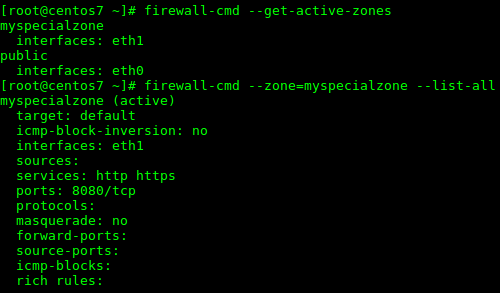
Let us walk through a small custom example: we will create a new zone called “myspecialzone” and associate it with the “eth1” device.
This new zone will allow access to http, https, and port 8080.
firewall-cmd --new-zone=myspecialzone --permanent
firewall-cmd --zone=myspecialzone --add-service=http --permanent
firewall-cmd --zone=myspecialzone --add-service=https --permanent
firewall-cmd --zone=myspecialzone --add-port=8080 --permanent
firewall-cmd --zone=myspecialzone --change-interface=eth1
firewall-cmd --reload
firewall-cmd --get-active-zones
firewall-cmd --zone=myspecialzone --list-all