
Por fin podemos instalar SQL Server 2017 en servidores Linux. En esta entrada vemos cómo instalarlo en CentOS 7 / RHEL 7, desde el repositorio hasta la conexión con SQLCMD.
We previously covered installing SQL Server on Ubuntu 16.04; here we will install SQL Server on CentOS 7 / RHEL 7.
As we will see, the procedure is the same regardless of the SQL Server 2017 edition we install: Enterprise, Standard, Web, Developer, Evaluation, or Express. In this example, we install the Express edition.
Before starting, open a session as root.
Minimum requirements
The minimum requirements are:
- 64-bit system.
- 2 GB of RAM.
- 2 cores at 2 GHz or more.
- 6 GB of disk space.
- File system: EXT4 or XFS.
Configure the repository
sudo curl -o /etc/yum.repos.d/mssql-server.repo https://packages.microsoft.com/config/rhel/7/mssql-server-2017.repoInstall SQL Server 2017
Run:
yum install -y mssql-serverInitial instance configuration
/opt/mssql/bin/mssql-conf setup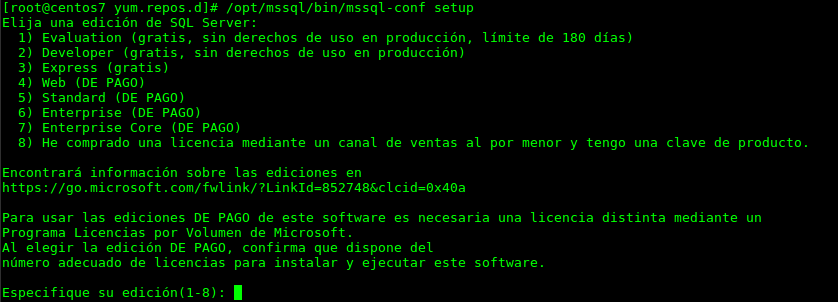
At this point, choose the SQL Server edition. In this example, choose “3”, which corresponds to SQL Server 2017 Express Edition.
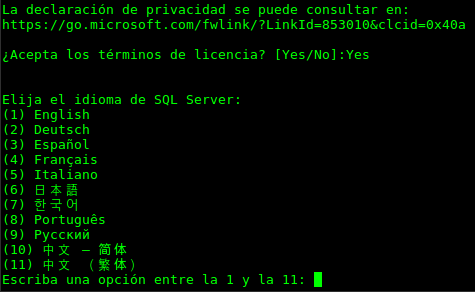
Accept the license terms by entering “Yes”. Then enter and confirm the instance administrator password for the “sa” user.
Check that the instance is running
The installation creates a daemon, so you can manage the database like any other server service. Check its status with:
systemctl status mssql-serverThe instance should already be running. If it is not, use systemctl to start it and enable it at boot:
systemctl enable mssql-server
systemctl start mssql-server
SQLCMD
To connect to the database instance from the command line, install SQLCMD. We have also used this tool in Total Administrator to restore SQL Server databases from the command line.
Configure the repository
Run:
sudo curl -o /etc/yum.repos.d/msprod.repo https://packages.microsoft.com/config/rhel/7/prod.repoInstall SQLCMD
yum install -y mssql-toolsAccept the license by entering “YES” twice.
echo 'export PATH="$PATH:/opt/mssql-tools/bin"' >> ~/.bash_profile
echo 'export PATH="$PATH:/opt/mssql-tools/bin"' >> ~/.bashrc
. ~/.bashrc
Test the connection with SQLCMD:
sqlcmd -S localhost -U sa
The SQL Server instance is now installed and ready on Linux.